Set start page
Configure Edge to open BookmarkHubs on startup, home button, and new tab page so your personal desktop is always one click away.
Why set this up
BookmarkHubs is your personal Web Launchpad. Pointing your browser startup page, home button, and new tab page to it means every time you open the browser or click Home, you land directly on your bookmark desktop without an extra hop.
Microsoft Edge
- 1
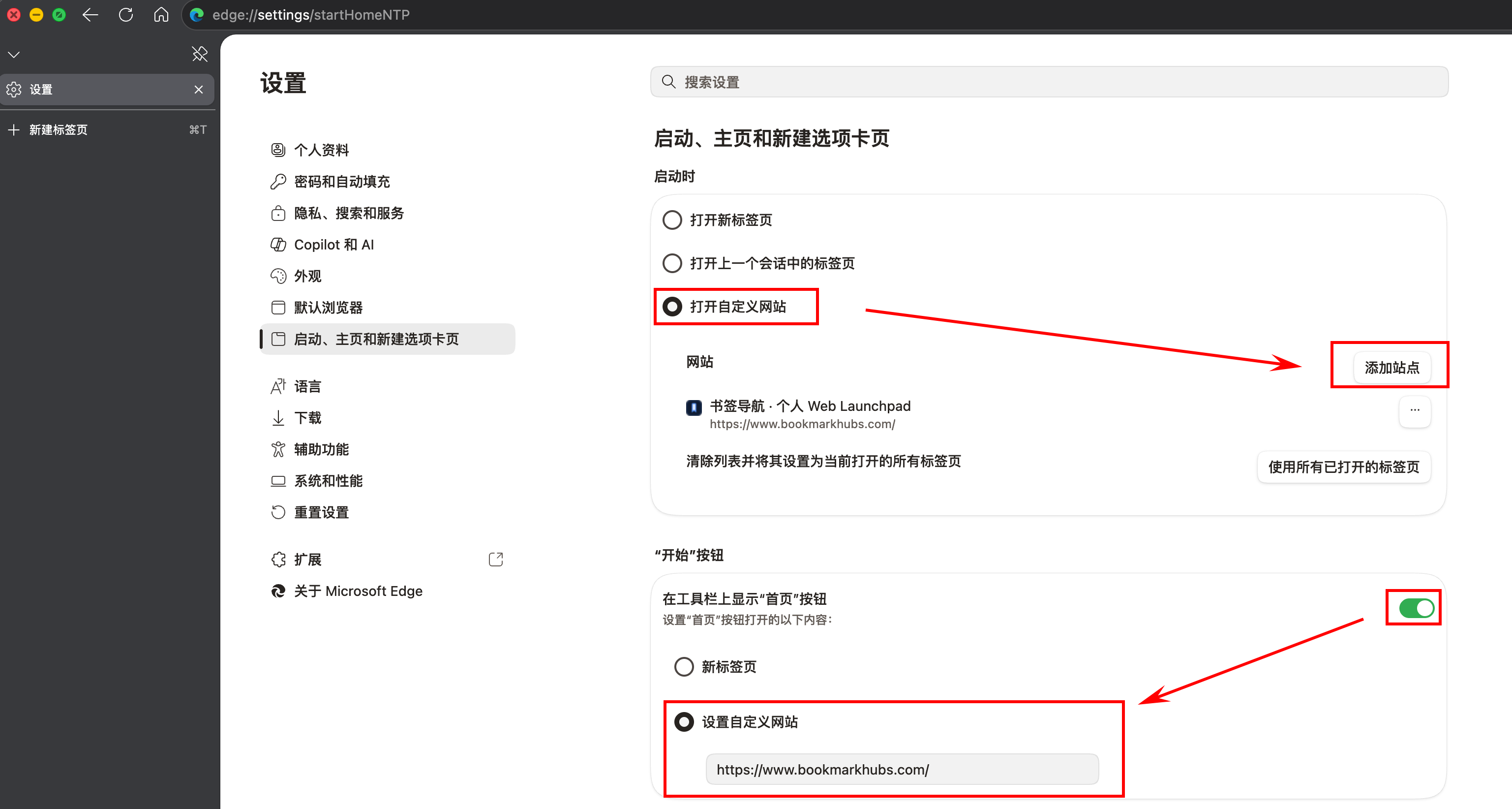
Type edge://settings/startHomeNTP in the Edge address bar and press Enter to open the “On startup, home button, and new tab” settings.
- 2
Under “On startup”, select “Open one or more specific pages”.
- 3
Click “Add a new page” and enter your BookmarkHubs URL (for example https://www.bookmarkhubs.com/), then confirm.
- 4
(Optional) Turn on the “Show home button on toolbar” switch.
- 5
Under the “Home button” section choose “Set custom URL” and enter your BookmarkHubs URL again. Now clicking the toolbar Home button also opens your personal desktop.
Edge settings URL: edge://settings/startHomeNTP
Tip
If you are running locally (for example http://localhost:3000), you can use that address too for easier debugging. Remember to switch back to your real domain after deploying.
Other browsers
Chrome, Firefox, and Safari have similar settings, usually under “On startup” or “Homepage”. We will add dedicated guides for Chrome, Firefox, and Safari later. For now we recommend Edge and navigating directly to edge://settings/startHomeNTP.